Robofinity Insightdrive V12.0 Is Here!
Started 7 months ago by Robofinity in Official News & Events
Big news, We’re stoked to roll out Robofinity Insightdrive Software Version 12.0..
Body
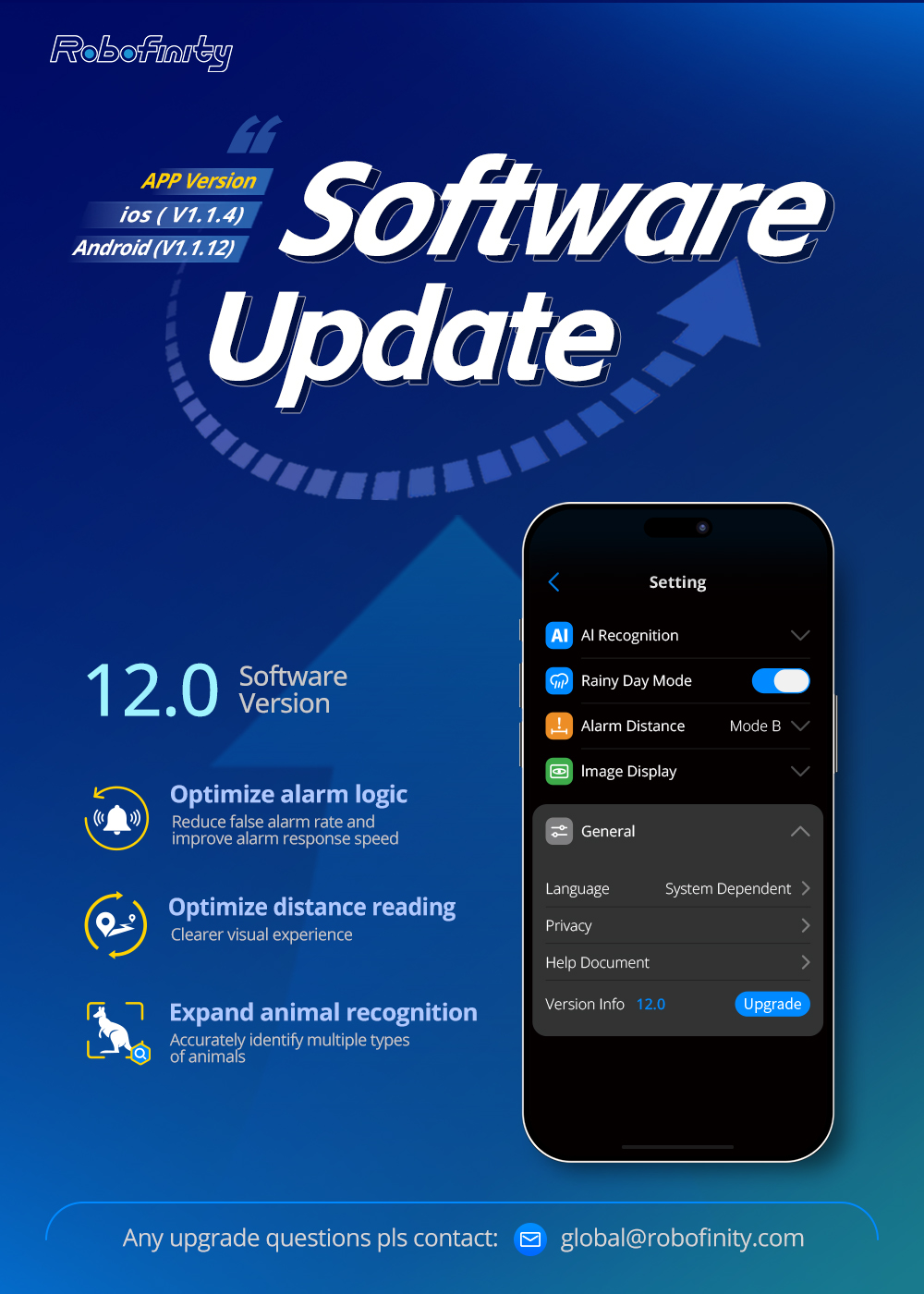
Big news, We’re stoked to roll out Robofinity Insightdrive Software Version 12.0 — a snappy upgrade crafted to level up your InsightDrive game!
Check out the cool new tweaks:
-
Smarter Alarm Logic: Way fewer false alarms, plus faster response speed! (Pro tip post-update: Set vehicle/pedestrian alarm distances to 3m/15m for top-tier performance)
-
Clearer Distance Readings: Bigger on-screen display — crystal-clear at a glance!
-
Better Animal Recognition: Updated dataset = spot more animal types accurately
If you encounter any problems during the update process, please contact us at [email protected].
Update now and enjoy the glow-up!
7 Replies
-
@Robofinity
We’re dedicated to thermal imaging innovation, empowering individuals and industries with cutting-edge tech to boost safety, efficiency, and quality of life. ·10+ years of mature industry expertise for premium product quality ·Served 30+ countries, Global reliability across diverse environments and driving conditions. ·Trusted by 3000+ users (drivers, fleets, safety-critical sectors) for stable performance ·Equipped with deep learning AI: precisely detects/measures distances to vehicles, pedestrians, animals (even varied postures) for proactive collision alerts ·Industry-leading thermal tech: AI-powered image preprocessing & super-resolution enhance clarity and object details ·User-centric: Prioritize experience in design, iterate continuously to make thermal imaging accessible to all
Replied 6 months ago
Can I downgrade the software? After updating to 12.0 my device recognizes people very late or not at all :/
Official recommendation: Set the detection distance to 3 meters for vehicles and 15 meters for pedestrians. This setting is ideal for urban driving and prevents frequent alarms.
If you want alarms to be triggered more promptly, you can increase the detection distance.
Unfortunately, I drive mostly outside the city. Before update every thing worked fine, pedestrians were highlithed even in 100m. Now there is only red warning about 3-5 meters in front of my car. My settings was and still are 25/100 meters
SignatureRobofinity InsightDrive, AI-Powered Thermal Imaging Innovations for Driving, accompany you on every safe journey.@Eakel
Can I downgrade the software? After updating to 12.0 my device recognizes people very late or not at all :/
Official recommendation: Set the detection distance to 3 meters for vehicles and 15 meters for pedestrians. This setting is ideal for urban driving and prevents frequent alarms.
If you want alarms to be triggered more promptly, you can increase the detection distance.
Unfortunately, I drive mostly outside the city. Before update every thing worked fine, pedestrians were highlithed even in 100m. Now there is only red warning about 3-5 meters in front of my car. My settings was and still are 25/100 meters
@Robofinity
We’re dedicated to thermal imaging innovation, empowering individuals and industries with cutting-edge tech to boost safety, efficiency, and quality of life. ·10+ years of mature industry expertise for premium product quality ·Served 30+ countries, Global reliability across diverse environments and driving conditions. ·Trusted by 3000+ users (drivers, fleets, safety-critical sectors) for stable performance ·Equipped with deep learning AI: precisely detects/measures distances to vehicles, pedestrians, animals (even varied postures) for proactive collision alerts ·Industry-leading thermal tech: AI-powered image preprocessing & super-resolution enhance clarity and object details ·User-centric: Prioritize experience in design, iterate continuously to make thermal imaging accessible to all
Replied 6 months ago
Can I downgrade the software? After updating to 12.0 my device recognizes people very late or not at all :/
Official recommendation: Set the detection distance to 3 meters for vehicles and 15 meters for pedestrians. This setting is ideal for urban driving and prevents frequent alarms.
If you want alarms to be triggered more promptly, you can increase the detection distance.
SignatureRobofinity InsightDrive, AI-Powered Thermal Imaging Innovations for Driving, accompany you on every safe journey.@Robofinity
We’re dedicated to thermal imaging innovation, empowering individuals and industries with cutting-edge tech to boost safety, efficiency, and quality of life. ·10+ years of mature industry expertise for premium product quality ·Served 30+ countries, Global reliability across diverse environments and driving conditions. ·Trusted by 3000+ users (drivers, fleets, safety-critical sectors) for stable performance ·Equipped with deep learning AI: precisely detects/measures distances to vehicles, pedestrians, animals (even varied postures) for proactive collision alerts ·Industry-leading thermal tech: AI-powered image preprocessing & super-resolution enhance clarity and object details ·User-centric: Prioritize experience in design, iterate continuously to make thermal imaging accessible to all
Replied 6 months ago
Can I downgrade the software? After updating to 12.0 my device recognizes people very late or not at all :/
Dear, Please click the following link to immediately access the after-sales service, then the customer service will tell you how to operate. customer service
SignatureRobofinity InsightDrive, AI-Powered Thermal Imaging Innovations for Driving, accompany you on every safe journey.@Eakel
@Robofinity
We’re dedicated to thermal imaging innovation, empowering individuals and industries with cutting-edge tech to boost safety, efficiency, and quality of life. ·10+ years of mature industry expertise for premium product quality ·Served 30+ countries, Global reliability across diverse environments and driving conditions. ·Trusted by 3000+ users (drivers, fleets, safety-critical sectors) for stable performance ·Equipped with deep learning AI: precisely detects/measures distances to vehicles, pedestrians, animals (even varied postures) for proactive collision alerts ·Industry-leading thermal tech: AI-powered image preprocessing & super-resolution enhance clarity and object details ·User-centric: Prioritize experience in design, iterate continuously to make thermal imaging accessible to all
Replied 7 months ago
How do I do update? Where to download from
How to upgrade your device:
1. Power on your InsightDrive.
2. Connect your phone to the AI Box's Wi-Fi (the SSID typically starts with "CyberBox"). Your phone may notify you that this Wi-Fi has no internet access—please select "Keep Connection" or "Stay Connected."
3. Open the InsightDrive AI App.
4. Go to Settings (bottom right) > General. Locate the "Upgrade" button and tap it to start.⚠️ IMPORTANT: After tapping the Upgrade button, DO NOT disconnect the power. During the process, the screen may freeze or turn black. Please wait patiently until the device successfully reboots.
If you have any additional questions, please don't hesitate to contact us at your convenience.
 SignatureRobofinity InsightDrive, AI-Powered Thermal Imaging Innovations for Driving, accompany you on every safe journey.
@Suspect420
Replied 7 months ago
How do I do update? Where to download from